Brightspace to Canvas
Send the same quiz to Canvas instead.
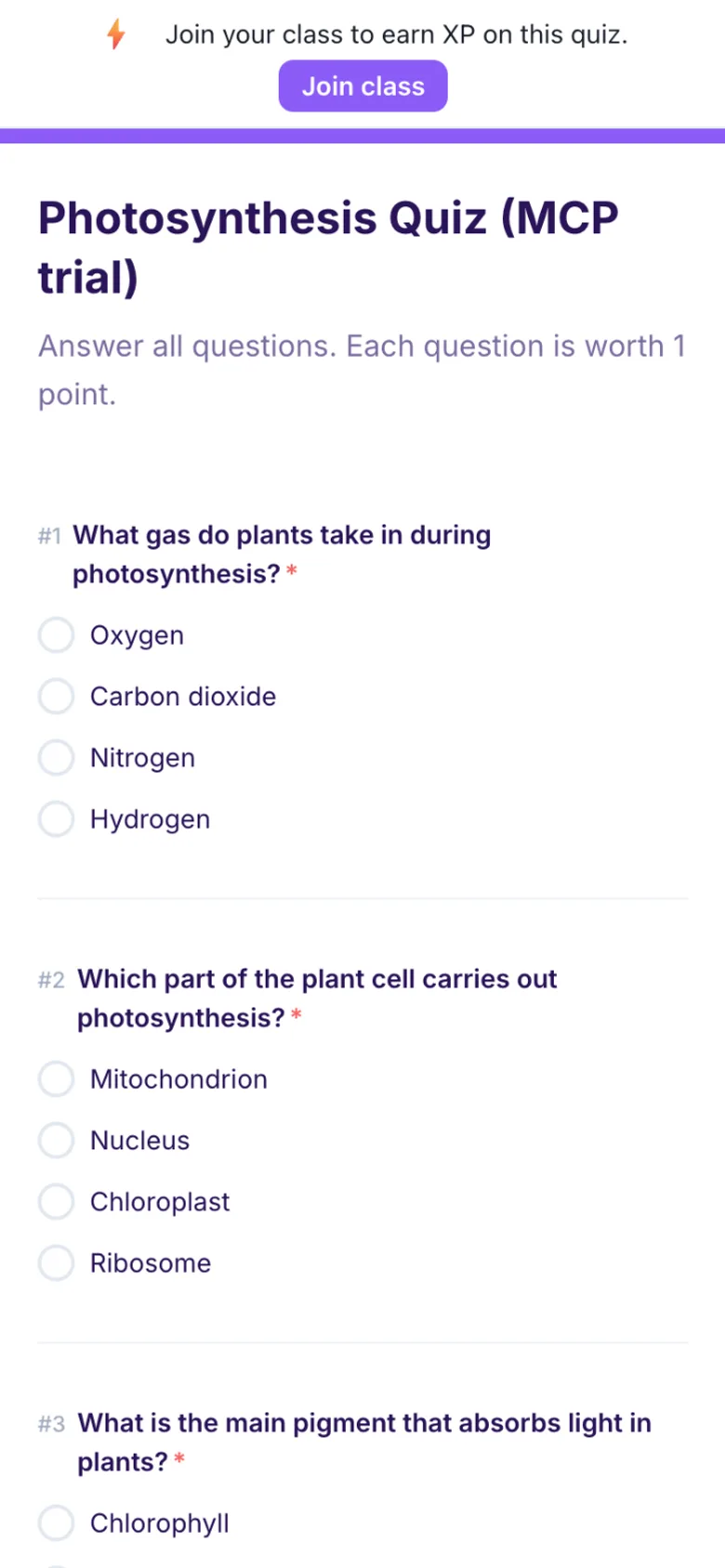
Bring a Brightspace quiz into Formswrite, fix what Moodle cannot take, then download Moodle XML. No retyping, and the editor shows every question before it leaves.
 Brightspace
 Moodle
D2L courses are hard to share with anyone outside the district. Moving the quiz gives you a copy you can open anywhere. Formswrite reads the Brightspace export .zip, shows every question in an editor, and writes a Moodle XML file for Moodle, which suits a question bank you reuse across Moodle quizzes.
Of the 7 question types Brightspace can hand over, 5 have a place in Moodle (4 as they are, 1 as a close equivalent) and 2 need a fix in the editor first. The table below says which.
Kept means it arrives as it was. Changed means a close equivalent. Fix first means Moodle needs an edit in the Formswrite editor before you export. Left out means the Moodle file has no place for it.
| Question type | From Brightspace | In Moodle |
|---|---|---|
| Multiple choice | Multiple choice questions come in with the right answer marked. | KeptKept as a multichoice question with one right answer. |
| Multiple answers | Multi select questions come in as checkbox questions. | KeptKept as multichoice with several right answers. |
| True or false | True or false questions come in as two option multiple choice. | ChangedComes through as multichoice with True and False options. |
| Short answer and fill in the blank | Short answer questions come in as short answer. | KeptKept as a short answer question. |
| Essay and paragraph | Written response questions come in as essay questions. | KeptKept as an essay question. |
| Matching | Read when the file marks it clearly. Look it over in the editor. | Fix firstNot exported as Moodle matching. Rebuild it as a matching question in Moodle. |
| Ordering (puzzle, jumble) | Read when the file marks it clearly. Look it over in the editor. | Fix firstExported as short answer, not Moodle's ordering question. Rewrite it or rebuild it in Moodle. |
In your Brightspace course, open Course Admin, then Import / Export / Copy Components. Choose Export Components and select your quizzes or Question Library. Finish the export and download the .zip file. Upload the .zip to Formswrite.
Open the importer, pick Brightspace and give it the Brightspace export .zip. The questions open in the editor as a draft, nothing is sent to Moodle yet.
Of what Brightspace hands over, Moodle will not take matching and ordering (puzzle, jumble) as they are, so rewrite or remove those questions. Spot check the answer key and fix any typos while the questions are in one place.
Choose Moodle XML in the export list. Formswrite builds a Moodle XML file and lists any question it had to skip or trim.
In your Moodle course, open the Question bank and choose Import. Pick Moodle XML format and upload the .xml file from Formswrite. Click Import, then add the questions to a quiz.
Import a Brightspace quiz free, check it in the editor, then export the Moodle file.